


Microsoft Excel: Spreadsheets
4.849.18K Reviews
App Specs
- Version
- Varies with Device
- Updated On
- License
- Free
- Downloads
- 1,000,000,000+
- Developer
- Microsoft Corporation
- Categories
- Productivity
- Platform
- Android, iOS
Screenshots
 Analysis by AppCompare
My first impression of Excel on a phone is that it brings familiar spreadsheet work into places where opening a laptop would be awkward: at a shop counter, in a meeting, or while checking a household budget on the sofa. It is still a spreadsheet tool, not a pocket-sized replacement for every desktop workflow, and that distinction matters. When I need to inspect a figure, make a quick correction, or keep a shared sheet moving, Microsoft Excel: Spreadsheets is a practical companion. When a task involves extensive formatting or a large, complicated model, I would rather use a bigger screen.
Where a connection changes the experience
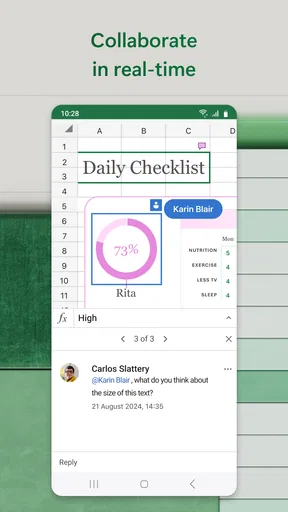
Connectivity matters most when a spreadsheet is shared or stored as part of a broader Microsoft workflow. Collaboration can make a small change useful immediately: a colleague can see an updated value, while I can check the same document instead of passing around a succession of copies. That convenience depends on having access to the shared file and a working connection at the moment I need it. For a document that must be available in a particular place or at a particular time, I make a point of checking access before I leave my desk rather than assuming everything will behave as it did at home.
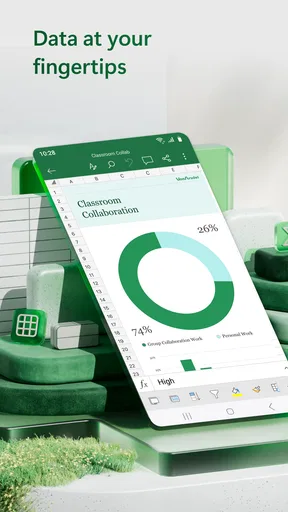
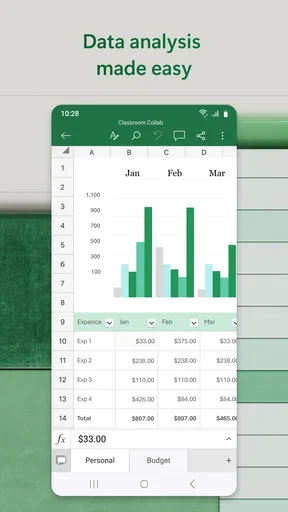
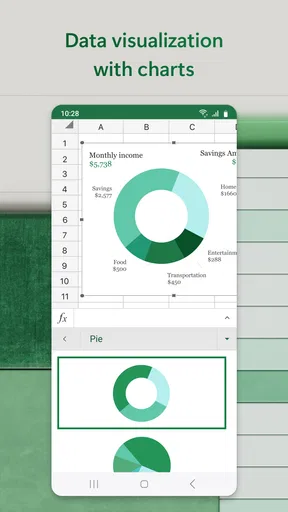
The same consideration applies to charts and visual summaries. A chart is helpful when I need to communicate a pattern quickly, but it does not make weak or inconsistent source data reliable. I first check that the relevant rows and labels are included, then look at the chart on the phone screen to see whether it remains readable. A compact view is good for a quick sense check; it is less comfortable for scrutinizing a crowded chart or tracing a subtle change across many entries.
Guides and Analysis on Microsoft Excel: Spreadsheets
Designed for quick mobile work, with limits
On Android and iOS, the strongest mobile use case is focused work: review a list, update a few cells, use a formula I already understand, or check a total before making a decision. For example, if I am shopping for a household project, I can open a materials budget, correct a price, and see whether the total still fits. That is a realistic job for a phone. Building the sheet from scratch, reorganizing dozens of columns, or auditing a complicated formula chain is another matter; touch controls and limited screen space make those tasks slower and easier to misjudge.
I also find that a phone encourages a useful discipline: decide what needs changing before opening the sheet. If I know I am correcting one amount or checking one category, the small screen feels manageable. If I start exploring a wide workbook without a clear target, navigation can become fiddly. Pinch and scroll gestures help me move around, but they do not provide the same overview as a monitor, so I take extra care to confirm the selected cell and its row or column before editing.
That makes Excel a good fit for people who already work with spreadsheets and want access between longer sessions, as well as anyone whose records are naturally small and structured. A freelancer might check a list of outstanding invoices; a family might maintain a monthly spending sheet; a project lead might review a shared tracker while away from a computer. Someone who only needs a simple checklist, on the other hand, may find a dedicated notes or task app quicker to maintain. Likewise, anyone expecting a phone to handle every advanced desktop task without compromise should set more modest expectations.
Recovering from interruptions and avoiding mistakes
Mobile work often happens in fragments. A call, a commute, or an interruption at the checkout can break concentration just as I am editing a row. I try not to make several loosely planned changes in one session. Instead, I update a small, identifiable group of cells, review the result, and make sure I am working in the intended shared file. That habit is especially valuable when more than one person is editing: a quick review reduces the chance that I leave behind a half-finished change or misunderstand a value someone else has updated.
Worth Reading Before You Choose

Flipboard Shows What News Apps Must Do Beyond the Feed

Switching to Android Auto Means Rethinking Your Driving Routine

Google Calendar Makes a Crowded Week Easier to Manage

Ludo King Makes the Most of the Minutes Between Plans

Baby Panda World Brings Quick Play to Modern Phones, but Its Game Library Feels Busy

ESPN’s Live Game View Makes Following Close Games Easier
For a sheet that matters, I avoid treating the phone as the only place to inspect a major change. If a formula affects a budget or a report, I check its result in context and, when the workbook is complex, return to a desktop-sized view for a more careful review. The mobile app is convenient for continuity, but convenience is not a substitute for checking the logic. A wrong cell reference can look perfectly tidy on a small screen.
Before editing a shared document in a hurry, it helps to identify the relevant sheet and column first, rather than relying on memory. I also avoid changing labels casually: a small wording change can affect how another person interprets the table, even if the numbers remain untouched. These are simple precautions, but they make mobile collaboration more dependable and prevent a quick correction from creating extra work for everyone else.
Handling data thoughtfully
Spreadsheets often contain information that deserves care, from household spending to work records. I use the app for information that benefits from rows, columns, calculations, and shared review, but I think about who can access a workbook before placing sensitive details in it. Sharing is useful precisely because it gives other people access; that makes it worth checking recipients and the document location before sending or editing. A spreadsheet is not automatically the right home for every personal record just because it is easy to arrange in cells.
For a cleaner workflow, I keep a sheet’s purpose narrow and use clear headings. If I am tracking expenses, I separate dates, categories, and amounts instead of combining several details in one cell. That makes totals easier to check and charts more meaningful. It also makes the file easier for another person to understand if I share it. Templates can give me a starting structure, but I still review their headings and sample content rather than assuming the layout matches the way I actually plan to use the workbook.
How it compares with simpler alternatives
Compared with a basic notes app, Excel takes more setup but gives me structure, calculations, and a way to compare information across rows. Compared with a lightweight list or budget app, it is more adaptable: I can shape columns and formulas around a particular job rather than accept one fixed layout. The trade-off is that flexibility asks something of the user. A person who wants to jot down three reminders may spend longer arranging cells than doing the task itself.
Against other spreadsheet apps, the practical choice often depends on where the rest of a person’s work lives. Excel is especially convenient if colleagues already exchange Excel files or use Microsoft tools, because the mobile app fits that existing routine. If a group is committed to another office ecosystem, its spreadsheet app may feel more natural for shared work. I would choose based on the documents I need to open and the people I need to work with, not on the assumption that one spreadsheet app is best for every team.
The All-in-One Data Wizard
First off, let’s talk about how Microsoft Excel: Spreadsheets is your go-to for everything data-related. From basic budget tracking to complex data analysis, it’s designed to handle it all. The app’s interface is pretty intuitive, and if you’ve ever used the desktop version, you’ll feel right at home. They’ve done a stellar job of adapting the features for mobile, keeping it user-friendly without losing functionality.
One of my favorite things about the app is its wide range of templates. Seriously, if you’re like me and sometimes need a little inspiration to get started, these templates are a lifesaver. They cover everything from personal finance to project management, which means less time setting up and more time getting things done.
Features That Make Life Easier
Now, let’s dive into some features that really stand out. The app supports all the classic Excel functions, which means you can create, edit, and share spreadsheets just like you would on your computer. And if collaboration is your thing, you can easily share your work with others and even co-author documents in real-time. It’s like having your office in your pocket.
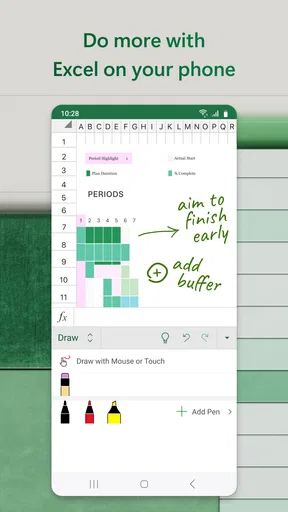
Another neat feature is the ability to insert charts and graphs. Visualizing data on a small screen might seem tricky, but Excel makes it surprisingly straightforward. The charts are interactive, making it easier to spot trends and patterns at a glance. Plus, with the AutoSum and Conditional Formatting tools, organizing and analyzing data feels less like a chore and more like a breeze.
Accessibility and Integration
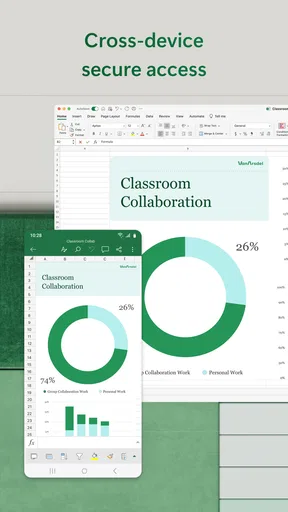
Let’s not forget about accessibility. The app plays nicely across Android and iOS, and it’s cloud-based, so your work is always synced and available, no matter where you are. It integrates seamlessly with other Microsoft Office apps, which is a huge plus if you’re already within the Microsoft ecosystem. Whether you’re using OneDrive or SharePoint, you can pull in data from other sources with just a few taps.
"Excel is not just a tool; it's a game-changer for anyone who deals with data."
There is also a broader reason the app remains familiar to many spreadsheet users: Microsoft Corporation has developed it as part of a productivity lineup people often already encounter at work or school. It is free to download, rated for Everyone, and has a 4.8 average from around 8.1 million ratings, with over 1 billion installs. Those figures suggest wide adoption, but they do not tell me whether the mobile editing experience will suit a particular person; my recommendation still depends on the kind of work you actually do.
What to expect before making it your regular tool
Excel is free, while in-app purchases range from $1 to $129.99 per item. I would check what a particular paid option includes before relying on it for a workflow, especially if all I need is occasional spreadsheet viewing or a few edits. The app’s broad reach and established feature set are useful, but they can also make it seem as though every spreadsheet task belongs on a phone. In my experience, the best results come from matching the device to the job: mobile for quick checks and targeted changes, a larger screen for building and inspecting complicated workbooks.
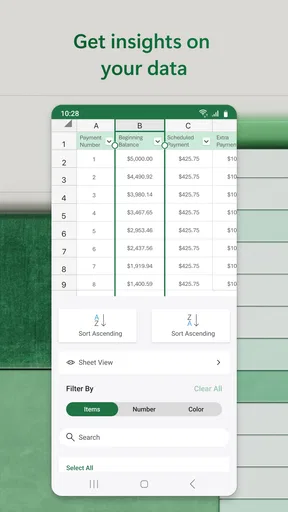
The AI emphasis around visual charts is worth viewing as a way to explore data, not as a reason to skip basic checking. Before trusting any chart or summary, I make sure the source range represents the question I am asking and that unusual entries have not distorted the picture. For a short sales log, a visual can make a pattern easier to discuss; for a messy dataset, cleaning and organizing the rows comes first. This distinction helps keep automation useful without treating an attractive output as proof that the underlying analysis is sound.
Excel was released on January 6, 2015, and its long life as a recognizable spreadsheet name helps explain why it can be a sensible default when exchanging familiar workbook files is part of everyday work. Still, familiarity is not the same as simplicity. New spreadsheet users may do better by starting with a template, keeping the first workbook small, and learning one formula at a time rather than trying to build an elaborate system immediately. That approach lowers the barrier without pretending the app has no learning curve.
My connectivity verdict
For me, connectivity is an advantage when it keeps a shared spreadsheet useful across devices and people, but it also asks me to be deliberate about access, timing, and the state of a file. If I am heading into a situation where I cannot count on reaching a document, I plan around that uncertainty instead of assuming a change will sync on cue. For a group that actively works in Microsoft’s ecosystem, this can make Excel a strong mobile extension of a familiar process. For someone who needs a guaranteed, self-contained way to edit a workbook in every setting, I would first test the exact workflow they depend on and consider whether a simpler or more locally focused tool better fits their needs.
In conclusion, Microsoft Excel: Spreadsheets is a powerhouse for anyone who needs to manage data on the go. With its robust features and user-friendly design, it’s no wonder it remains a top choice among professionals and casual users alike. If you haven’t given it a whirl yet, I’d say it’s about time you did. You might just find it becoming your new favorite app.
Pros
- Robust data analysis tools.
- Seamless integration with Office 365.
- Wide range of templates available.
- Supports collaborative editing.
- Cross-platform compatibility.
Cons
- Steep learning curve for beginners.
- Mobile version lacks some features.
- Requires subscription for full features.
- Resource-heavy on older devices.
- Limited offline functionality.
FAQs for Microsoft Excel: Spreadsheets
What are the main features of Microsoft Excel: Spreadsheets on mobile?
Microsoft Excel: Spreadsheets offers a range of powerful features on mobile, including the ability to create, edit, and view spreadsheets on the go. Users can access templates, perform calculations with Excel formulas, and collaborate in real-time with others. Additionally, the app supports chart creation and data analysis to enhance productivity.
Is Microsoft Excel: Spreadsheets free to use on Android and iOS?
Microsoft Excel: Spreadsheets is available for free download on both Android and iOS devices. However, some advanced features require a Microsoft 365 subscription. With a subscription, users gain access to premium features such as advanced chart options, more templates, and additional storage space on OneDrive.
Can I use Microsoft Excel: Spreadsheets offline?
Yes, Microsoft Excel allows users to work offline once documents are downloaded to the device. You can create and edit spreadsheets without an internet connection. However, to sync changes and collaborate with others, you'll need to reconnect to the internet. Ensure your files are saved locally for offline access.
How does collaboration work in Microsoft Excel: Spreadsheets?
Collaboration in Microsoft Excel is seamless, allowing multiple users to work on the same spreadsheet simultaneously. Changes are updated in real-time, and users can leave comments and track changes. This feature requires an internet connection and is best utilized with a Microsoft 365 subscription for enhanced collaboration tools.
What types of files can be opened in Microsoft Excel: Spreadsheets?
Microsoft Excel supports a wide range of file formats, including XLSX, XLS, CSV, and more. Users can open and edit these files directly from their mobile devices. The app also integrates with OneDrive and other cloud storage services, making it easy to access and manage files across different platforms.


